Preparing a CAD Assembly for an Installation Animation
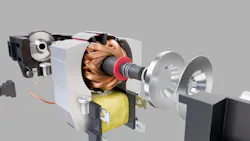
Most installation animations start the same way: An engineer exports the assembly from their CAD software, shares it over an email and moves on to the next job. From the animator’s side, that file is the starting point of a long clean-up. After seven years of making manufacturers CAD files into an assembly and installation animations, my team has learned that the quality of the final video is a balance between the file preparation and rendering.
This article walks through that process: how CAD data imports into animation software, how we clean and organize a heavy assembly, how we break down a CAD assembly into assembly steps a person can follow, and what engineers can check before they send files. The examples come from our own projects, but the workflow will be familiar to anyone who has handed CAD data to a visualization team.
Why a CAD File May be Manufacturing-Ready But Not Animation-Ready
CAD and animation software describe geometry in different ways. A STEP file, the ISO 10303 format that almost every manufacturer can export, stores exact surfaces and solids. Animation tools, such as Blender, Cinema 4D and 3ds Max, work with meshes (surfaces broken into many small polygons). So before we can animate anything, the CAD data has to be converted. We usually do this in FreeCAD or another CAD package, then import the mesh into Blender. There are four problems that show up again and again at this stage.
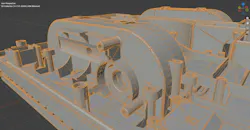
Messy geometry. Conversion produces long, thin triangles across flat and curved faces (Figure 1). In the viewport, the model looks acceptable. Under studio lighting, however, those thin triangles often show up as streaks, dents and shading errors, especially on round surface and edges. We clean up or re-model that surfaces so they render smoothly.
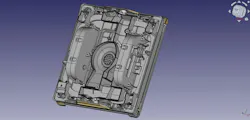
Missing parts. Files often arrive with some parts removed, either for confidentiality or because of an export problem. In the assembly shown in Figure 2, the motor, the water tank lid, nozzles, wiring and the PCB were all missing. Our first step is to ask for the complete file. If that isn’t possible, we model the parts from reference photos. Exterior parts are manageable. Internal parts need photos of the inside, and complex ones need measurements as well. The goal is simple: A rebuilt part should not look fake next to the CAD-accurate parts around it.
Misaligned parts. Most files we receive have at least a few parts out of position. Some are genuine design states; others are export mistakes. We take a screenshot and ask the client to confirm whether it is an intentional or an export mistake.
Units and scale. Mesh formats such as STL store no units at all, so the receiving software has to guess. A part designed in millimeters can arrive 1,000 times too large. When an assembly comes in several files exported with different settings, the parts can arrive at different scales and simply don’t fit together. We scale and adjust it with accuracy so every component keeps its true proportions.
What’s Needed Beyond the Model
A CAD file give us an idea of what the product looks like, but it doesn’t explain us how it goes together or what the video needs to explain. So along with the model, we ask for:
- The CAD file itself. STEP is our first choice, because it is the industry standard and nearly every engineering team can export it. If the team can also export STL, OBJ or FBX, even better, since those import directly into animation software.
- The assembly or installation document. For an installation animation, the step-by-step manual effectively acts as a script.
- Photos of the real product. CAD colors rarely match the finished product. Photos let us match materials, finishes and colors, part by part, so the animation looks like the thing the customer will receive.
- The setting. A plain solid-color background, a studio, an industrial site or an outdoor location. This changes lighting, camera work and render time.
- A technical call for complex equipment. A short call with an engineer who explains how the machine works, what matters most and what must not be shown incorrectly. It costs far less to learn this up front than to fix a wrong sequence after the animation is done.
Cleaning up a Heavy Assembly
Industrial assemblies can run to thousands of parts. Loading everything at once makes scenes slow, requires long render time and crashes the scene on occasion. The following habits keep large files easy to work with:
Work in segments. We split the assembly into groups (segment A, segment B and so on) and enable only the segment we are animating. The full assembly is switched on exclusively for final checks.
Remove what the camera never sees. A product might have five to ten exterior housing parts and thousands of internal parts. If the video only shows the outside, the internals will be deleted, which cuts the file size drastically.
Join, don’t delete. A chain exported from CAD often has every link as a separate object, and an assembly can carry thousands of bolts, washers and rivets. We merge repeated small parts into single objects. The part count drops, but no component is lost. We only delete parts when they are clearly unnecessary.
Organize by function. Every part, including the housing, internals and electronics, go into their own collection, so it’s easy to find, hide or highlight any parts in seconds.
Confirm anything odd before animating. Misaligned or unexpected geometry is shared with the client as a screenshot with a question. Fixing it now costs minutes; fixing it after completion costs days.
Turning the CAD File into Assembly Steps
A CAD file reflects how a product was designed, but it doesn’t show how it is assembled. The sequence has to come from the client’s manual, and we follow a few rules when we build it.
Keep the manual’s step numbers. If a customer calls support and says they are stuck at step 4, step 4 in the video should be the same as step 4 in the manual. That alignment makes the video useful to the support team as well as to the installer.
- One part at a time. We start from the full assembly, hide everything except the first one or two parts, then bring each new part in and move the camera in close where it joins. Then the next part, and the next.
- Show repeats once, in detail. If eight identical brackets go on the same way, the first is shown slowly and closely; the rest follow at speed. Viewers understand the pattern without watching it eight times.
- Suggest changes, don’t impose them. Animating a manual sometimes reveals a step order that is easier in practice than the one on paper. We suggest the change. Most clients agree, and many then update their 2D manual so the video and manuals stay aligned. Sometimes, the engineer explains why the original order is required and we keep it. Either way, video and manual end up matching.
On the client side, two people usually review the work. An engineer or technical manager checks the sequence and technical accuracy. A product or marketing manager checks clarity, pacing and how it looks visually. Both reviews matter and they catch different problems.
The Details Engineers Notice
- The approach path. Every part must arrive from a direction it could physically travel in the real world. A part that passes through a housing to reach its position is the fastest way to lose an engineer’s trust.
- Sequence over style. Engineers care much more about the order of operations than about camera moves. Camera and pacing feedback usually comes from the product or marketing side—typically a note such as “spend a little more time on this step.”
- Tools and fasteners. Different fasteners may need different tools, and some bolts must be tightened to a specified torque. We show the right tool for each fastener and put the torque value on screen where the documentation specifies it.
- Clean visuals. No hands, no clutter. Parts move into place on their own, and the camera closes in on the joint at the moment it matters.
A Checklist Before Sending CAD Files to an Animator
Most engineers send CAD files without knowing how the animator will use them, which is understandable. A few minutes of checking on the engineering side can save days of rework on the animation side:
- Disguise confidential parts rather than delete them. Simplify or slightly modify sensitive geometry if you need to. Deleted parts have to be rebuilt from photos, which is slower and less accurate, especially for internal components.
- Check that the export is complete. Open the exported file and compare the part count with the original assembly.
- Check alignment. Make sure parts sit in their assembled positions or flag the ones that don’t.
- Check units and scale. If you send parts in separate files, export them all with the same units so they fit together.
- Export a mesh format if you can. An STL, OBJ or FBX alongside the STEP file saves a conversion step, because those formats import directly into Blender, Cinema 4D and 3ds Max.
- Send the manual and photos with the model. The manual is the script; the photos are the material reference.
None of this is complicated, but it is easy to skip when the CAD export is the last task on a busy engineer’s list. Getting it right gives the person installing your product a video that matches the manual, step for step.
Editor’s note: This article was developed with the assistance of generative AI tools to help convey the author’s intent in clear, accessible English. Our editorial team reviewed and edited the piece for clarity, accuracy and technical integrity while preserving the author’s contributions and expertise.
Have a question, comment or idea? Get in touch with the Machine Design editors at [email protected].
About the Author
Prakash Kakadiya
Founder, Acoroid Studio
Prakash Kakadiya is the founder of Acoroid Studio, a 3D animation studio in Surat, India that creates assembly, installation and product animations from manufacturers’ CAD data.
Voice Your Opinion!
To join the conversation, and become an exclusive member of Machine Design, create an account today!
 Leaders Logo
Leaders relevant to this article: